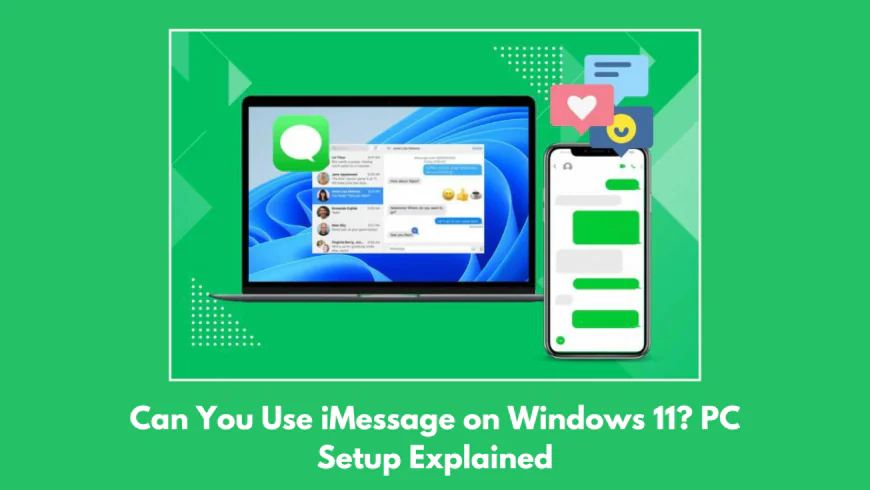
Can You Use iMessage on Windows 11? PC Setup Explained
 datarecovee
The majority of Apple users use iMessage to send and receive messages on their mobile phone; however, when using a PC, writing messages becomes even easier using a keyboard. Now, there are a lot of people who often wonder: can you send iMessage from PC? If you are also thinking the same, then use this guide to learn whether it is possible for you to use iMessage on your computer or not.
Well, you will be surprised to know that Microsoft is equipped with an efficient Phone Link application that allows you to access your text messages on your computer, particularly Windows 10 and 11. This means that any text message that you receive or send will be automatically synced on both your devices. Here in the guide, we will mention the entire process that you need to adhere to use this application and get iMessage on your personal computer.
How can you send and receive messages on iMessage on Windows?
Phone Link is the same in Windows 10 as it is in Windows 11. First, you should do a bit of setting up on both your phone and PC before you can get to use Phone Link.
-
Your device needs to be running at least iOS 16. You can ensure this by going to Settings, then clicking on General, and finally selecting Software Update.
-
In order to have the latest version of Windows, you need to go to Settings, select Windows Update, and hit the button for checking updates.
-
Afterward, validate that you have the most recent version of Phone Link installed.
-
On top of that, verify that Bluetooth is working on your computer.
Open Phone Link
In Windows 10 or 11, hit the Start button, access the list or menu of all installed applications, and choose Phone Link. When you open the application, press and hold the Continue button. The subsequent screen asks you to indicate what type of device you have. Hit the button for iPhone.
Scan the QR Code
A QR code is expected to pop up in the Phone Link app. Activate the camera on your iPhone and read the code. Then, on your iPhone, click the link at the bottom of the camera screen to connect your devices. Both your iPhone and Windows computer running OS 11 should show connection notifications. Press the Pair button on both devices and allow a moment for them to connect.
Transfer your iPhone data
The phone will probably ask you if you want to receive notifications from your iPhone on the computer. Tap Allow to confirm this. This will mean that you can fully access and use the applications and data from your phone on the computer, including messages.
Launch Phone Link
The Phone Link welcome screen should show on your PC, and it will ask if you would like to open the app every time you log in to Windows. If your answer is yes, tick the box. Next, click Get Started.
Read your recent messages
Now, you simply need to press the message on the screen to access iMessage on Windows. 11. You can read any message you have received and send a new message to any user.
Datarecovee is an excellent platform that mentions the entire process even more deeply. You can also check out our data recovery tool to recover your lost data efficiently.