Strong Password Guide Pakistan: How to Create Passwords Hackers Cannot Guess
Learn how to create a strong password you can actually remember. Length beats complexity, plus a free generator, password managers, and 2FA tips for Pakistan.
 MuseBrandly
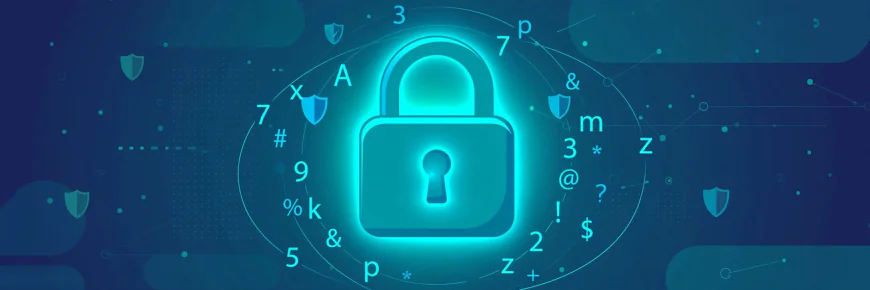
Here is an uncomfortable truth: if you can remember all your passwords, they are probably too weak. Most of us rotate between three or four familiar ones. A birth year here, a city name there, maybe an exclamation mark at the end to satisfy some website's rules. It feels safe because it is familiar. It is not safe at all.
The good news is that learning how to create a strong password is easier than the old advice made it sound. You do not need a photographic memory or a string of random symbols you will forget by tomorrow. You need length, uniqueness, and a system for remembering. This guide walks through all three, with examples that work for anyone in Pakistan managing email, social media, mobile banking, and online shopping accounts.
The short answer: a strong password is long (16 characters or more), unique to one account, and stored in a password manager so you never have to memorise it. Everything below explains how to get there.
Why Most Passwords Fail
Passwords fail for the same handful of reasons, and you have probably used at least one of them.
Reuse is the biggest killer. When one website suffers a data breach, attackers take the stolen email-and-password pairs and try them on hundreds of other sites. This is called credential stuffing, and it works because so many people reuse passwords. Your Facebook password becomes your Gmail password becomes your bank login. One leak anywhere opens everything.
Predictable patterns come next. Attackers do not guess randomly. They start with the most common passwords in the world, then try obvious variations: names, birth years, cities, cricket teams, seasons. In Pakistan, passwords like "pakistan123", a phone number, or a child's name followed by a birth year are extremely common, which means they are also extremely guessable. Adding "!" at the end does not save them; attackers know that trick too.
Short passwords fall fast. Every character you add multiplies the number of guesses an attacker needs. An 8-character password can be cracked far sooner than most people imagine, while a 20-character one is practically out of reach. Length is the single most powerful thing you control.
What Actually Makes a Password Strong
For years, the standard advice was a recipe: one uppercase letter, one number, one symbol, change it every 90 days. That advice has been retired by the very people who wrote it.
The US National Institute of Standards and Technology (NIST) updated its digital identity guidelines in 2025, and the new guidance is refreshingly simple. Length beats complexity. A long passphrase of ordinary words is harder to crack than a short tangle of symbols, and far easier for a human to remember. Mandatory complexity rules and forced password changes every few months are out, because research showed they just push people toward predictable workarounds like "Summer2025!" becoming "Autumn2025!".
The current expert consensus comes down to three rules:
- Make it long. Aim for at least 16 characters for important accounts, 20 or more for email and banking. The official minimum is lower, but longer is always better.
- Make it unique. Every account gets its own password. No exceptions for the accounts that matter.
- Make it random, or random enough. Either let a generator create it, or build a passphrase from several unrelated words.
Notice what is missing: no requirement for symbols, no monthly changes, no memorisation heroics. The modern approach is built around the idea that humans are bad at randomness and great at forgetting, so the system should do the remembering.
Three Ways to Create a Strong Password
1. The passphrase method
Pick four or five unrelated words and string them together: "correct-horse-battery-staple" is the famous example. For a Pakistani flavour: "truck-chai-monsoon-laptop-kite". It is long, it is weird, and you can actually remember it. Add a number or separator between words if you like, but the length is doing the real work. Passphrases are ideal for the two or three passwords you truly must memorise, like your password manager's master password.
2. A password generator
For everything else, do not invent the password yourself. Humans are predictably unpredictable: we favour certain letters, avoid others, and fall into patterns without realising. A generator uses your device's secure random number source to produce something no human would think of, like "k9#mQ2$vL8@xR4!". You will never memorise it, and that is the point. You copy it once into a password manager and never type it again.
3. Your password manager's built-in generator
Most password managers can generate and fill passwords automatically when you create an account. This is the smoothest option: one click creates a 20-character random password, saves it, and fills it in next time. If you already use a manager, you may never need a separate generator.
Using Brandly's Free Password Generator
If you want a quick, no-signup way to create a strong password right now, Brandly's free Password Generator does exactly this. It runs entirely in your browser, which means the password is created on your own device using its secure random number generator. It is never sent to Brandly or anyone else.
Here is how to use it well:
- Open the Password Generator page.
- Set the length to at least 16 characters (20 is better for email and banking).
- Keep uppercase letters, numbers, and symbols switched on for maximum randomness.
- Hit generate until you get one you like. There is no limit.
- Copy it and save it in your password manager immediately. Do not leave it sitting in a notes app or a chat with yourself.
One honest note: a generator only solves creation. If you generate a beautiful 20-character password and then reuse it on five websites, you have wasted its strength. Unique per site, always.
You can also explore the full collection of free online tools, from image compressors to business calculators, all free with no signup.
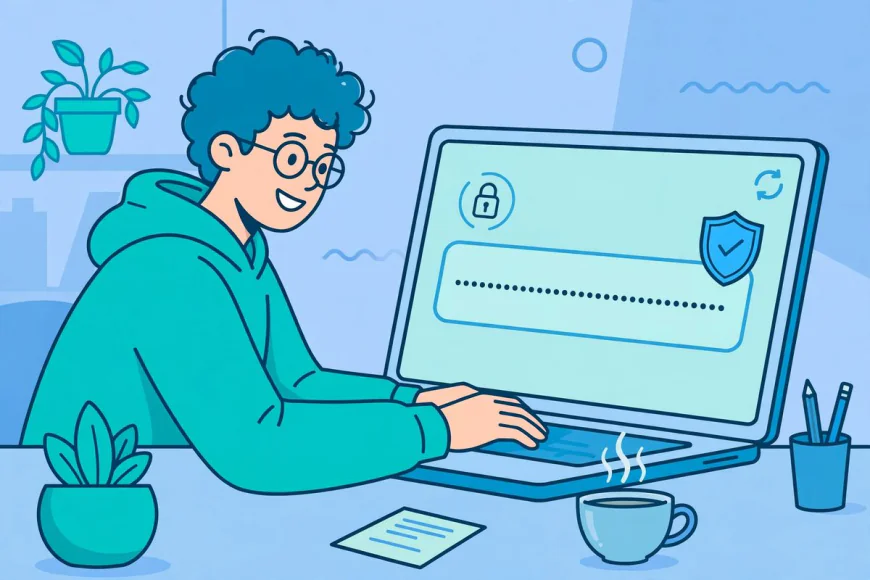
The Memory Problem, Solved
This is where most password advice collapses. "Use a unique 20-character password for every account" is excellent guidance and completely useless if you have to remember forty of them.
The answer is a password manager: an app that stores all your passwords behind one master password. You remember one strong passphrase; it remembers everything else, fills logins automatically, and can generate new passwords on demand. It is the single biggest security upgrade most people can make, bigger than any individual password choice.
Good options include Bitwarden, which is free and open source, and the built-in managers in most browsers and phones (Google Password Manager, iCloud Keychain, Samsung Pass). Pick one, install it on your phone and computer, and let it save passwords as you log in. Within a week, most of your daily logins will be handled for you.
Your master password deserves the passphrase treatment: four or five unrelated words you can remember but nobody could guess. Write it down on paper and keep it somewhere safe at home if you must; a paper copy in your drawer is far safer than a weak password reused everywhere. Just do not photograph it or store it in your email.
Go Beyond Passwords: Turn On Two-Factor Authentication
Even the strongest password can be stolen through phishing or a data breach. Two-factor authentication (2FA) adds a second check, usually a code from an app or SMS, so a stolen password alone is not enough to get in.
Turn it on first for your email (the master key to all your password resets), then mobile banking and wallets like JazzCash and Easypaisa, then social media. Authenticator apps such as Google Authenticator or Microsoft Authenticator are safer than SMS codes, because SMS can be intercepted, but SMS-based 2FA is still far better than nothing. Where a site offers passkeys instead of passwords, take that option: passkeys cannot be phished or guessed at all.
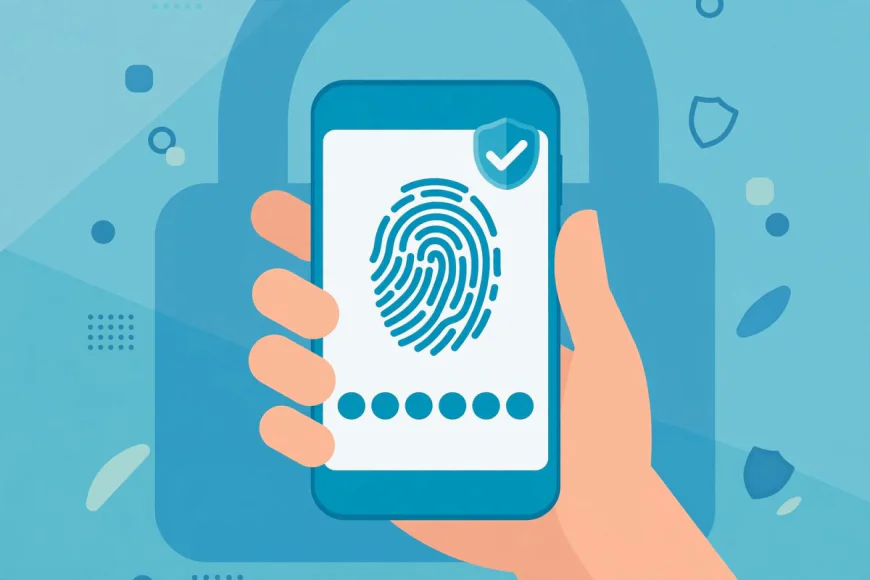
In Pakistan, this matters more than most people realise. Scam calls and messages asking for your OTP or "verification code" are common. Here is the rule that defeats all of them: no legitimate bank, wallet, or company will ever ask for your OTP. Anyone asking for it is a scammer, without exception. Your OTP is the second factor; handing it over defeats the entire system.
Seven Password Mistakes to Avoid
1. Reusing one password everywhere. Covered above, still the number one mistake. Fix it starting with email and banking.
2. Using personal details. Names, birthdays, phone numbers, and CNIC digits are guessable and often publicly visible. Keep them out of passwords entirely.
3. Sharing OTPs. No bank or mobile wallet asks for your one-time code. Ever. Anyone who does is running a scam.
4. Saving passwords in your browser without a lock. Convenient, but anyone who picks up your unlocked phone or laptop gets everything. Use a proper manager with a master password, or at least lock your devices with a PIN or fingerprint.
5. Emailing passwords to yourself. Email is one of the most attacked accounts. Storing passwords there puts them exactly where attackers look.
6. Ignoring breach alerts. If Google, Apple, or your browser warns that a password appeared in a data breach, change it immediately, starting with the most important accounts.
7. Thinking "I have nothing worth stealing." Your email alone can reset your bank, wallet, and shopping accounts. Everyone is worth targeting.
Frequently Asked Questions
What makes a password strong?
Length first, then uniqueness. A password of 16 or more characters, used on only one account, is strong. Complexity (symbols and mixed case) helps but matters less than length.
How long should my password be?
At least 16 characters for important accounts, 20 or more for email and banking. Longer is always better; there is no penalty for going long.
Is it safe to use an online password generator?
It depends on the generator. A trustworthy one creates the password inside your browser and never sends it anywhere, which is exactly how Brandly's Password Generator works. Avoid generators that require accounts or send results over the network.
What is a password manager?
An app that stores all your unique passwords behind one master password. You memorise one strong passphrase; the manager handles the rest, including generating new passwords and filling them in automatically.
Should I change my passwords regularly?
No, not on a schedule. Current guidance says to change a password only when there is a reason: a breach alert, suspicious activity, or you shared it. Forced regular changes lead to weaker passwords, not stronger ones.
How can I remember strong passwords?
Do not try to remember all of them. Remember one master passphrase for your password manager, and let the manager remember the rest.
The Bottom Line
Strong passwords are not about clever tricks or superhuman memory. They are about length, uniqueness, and letting tools do what tools are good at. Generate passwords you could never invent, store them somewhere you do not have to memorise, and add a second factor to the accounts that matter most.
Start with your email account today: give it a fresh 20-character password and turn on two-factor authentication. Then work through banking, wallets, and social media over the next few days. Future you, the one who never gets that "your account was accessed from an unknown device" message, will be grateful.
Try it now: open Brandly's free Password Generator, create a 20-character password, and save it in your password manager. It takes two minutes, it costs nothing, and it is the simplest security upgrade you will make this year.